This guide provides a detailed walkthrough on creating an Apple Shortcut to record all your meetings in a note. While I use Obsidian for note-taking, this method can easily be adapted for Apple Notes or any other application you choose — even for sending the list via message.
My configuration includes:
- Fantastical (free version) for managing meetings
- Obsidian for note-taking
For those looking for an immediate solution, you're welcome to use the link below to access my shortcut directly.
Step-by-step guide
-
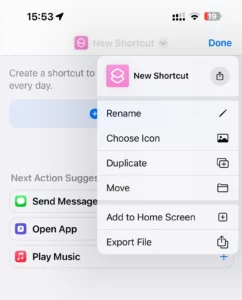
Begin by creating a new Shortcut (select a name and choose an icon).
-
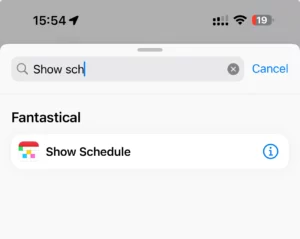
Tap [+] Add Action and search for "Show Schedule."
-
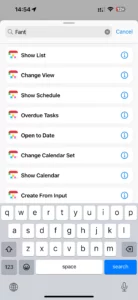
Important: My setup involves Fantastical, where I've listed the available actions. If you're using a different application, look for a comparable action. The default Apple Calendar app includes this functionality.
-
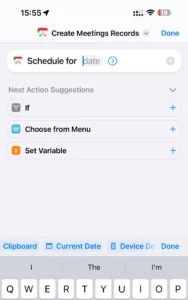
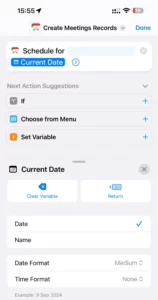
Insert the "Current Date" variable, which can be found in the list above your keyboard.
-
Click on the variable to select the required data format. I use "Medium" for date and "None" for time.
-
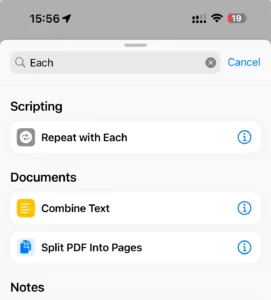
Now, add the "Repeat with Each" action to work with loops. "Schedule for" generates a list.
Why Fantastical? I use Fantastical as my calendar app because it allows me to integrate all my calendars, enabling me to view all events (both work and personal) with a single request. Additionally, I use Todoist for managing tasks and have integrated it with Fantastical. This provides a combined list of today's tasks and events. Access the Shine Shortcut here. P.S. This is not an advertisement =)
-
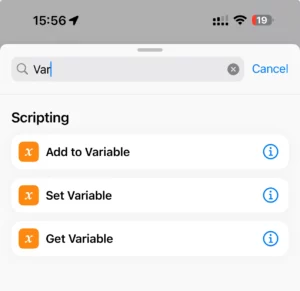
Next, incorporate the "Add to Variable" action.
-
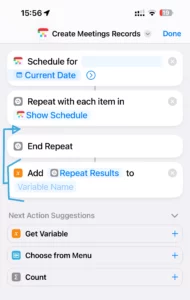
Observe the loop setup. All actions placed between "Repeat" and "End Repeat" will execute for each item in the generated list.
-
To include the "Add to Variable" action within the loop, tap and drag it into position.
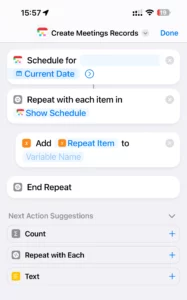
-
Within the loop, also add a "Text" action. This will allow us to format the text and compile all required items into a single line.
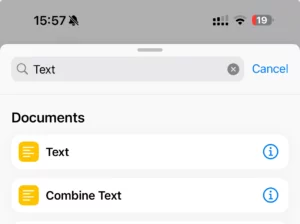
-
Add the Repeat Item variable to the Text action. This variable holds all data fields returned from the calendar, allowing you to select which ones to use.
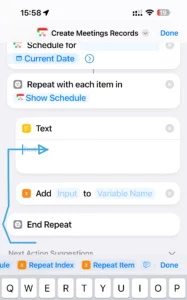
-
For the text, we will adopt a straightforward format that includes the time and name of the meeting.
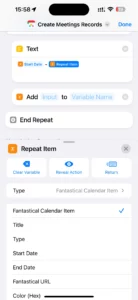
The Record Format
The format will be simple, such as: "13 Mar 2024 at 16:00 - Lunch." You have the flexibility to choose any format. In my personal Shortcut, I opted to create a table format using Date, Meeting Name, and Notes columns. -
To assign the resulting text to a variable, select "Text" from the dropdown menu.
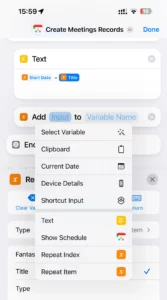
-
You can select any name for the variable, though I prefer starting mine with the letter "V."
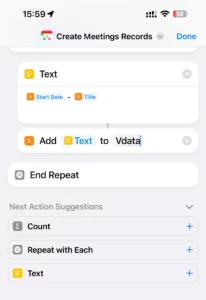
-
Add another "Text" action to compile the final output.
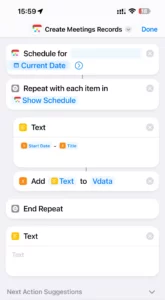
-
Create the Run Shortcut action.
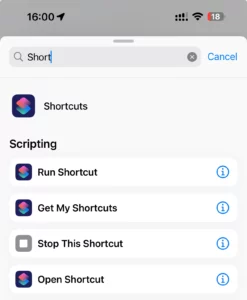
-
Update the "Text" action by incorporating the variable and adding a title.
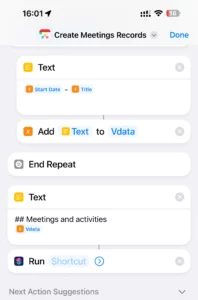
-
Now, let's use the Shortcut we created previously to save our note to a file.
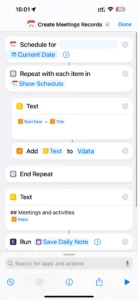
Just two steps away before achieving the desired result.
-
For the final adjustments to the action, disable the "Show When Run" option to enable running the Shortcut in the background.
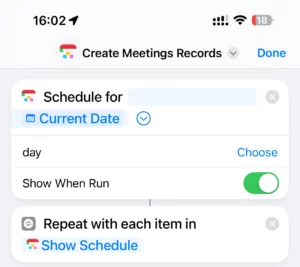
-
Done! Here is the final result of the Shortcut.
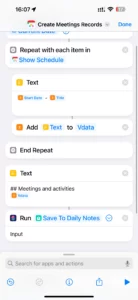
Based on this example, I'm confident you can craft various impactful shortcuts to enhance your daily preparation, save time, and maintain focus on what's important.
This is part of a series on utilizing the Shortcuts App:
- Set up a Shortcut to append text to the current DailyNote in Obsidian
- Create a Shortcut to retrieve information about today's meetings (this article)
- Establish an automation to execute Apple Shortcuts daily