To facilitate the ongoing creation of Shortcuts for writing in Obsidian Daily Notes, this process will be encapsulated in a dedicated Shortcut. Initially, these shortcuts were crafted offline during a flight without internet access.
Subsequently, I explored whether Apple offered a more efficient method to interface with Obsidian and discovered Actions for Obsidian. However, since this application does not operate in the background (with the phone locked), I decided to continue working directly with .md files.
If you're in a hurry and prefer a quick solution, feel free to use the following link to access my shortcut directly.
Step-by-step guide
-
Create a shortcut by clicking on "+"
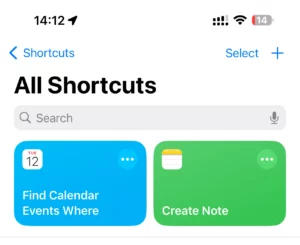
-
Here is a working board where we will create actions and set up a title.
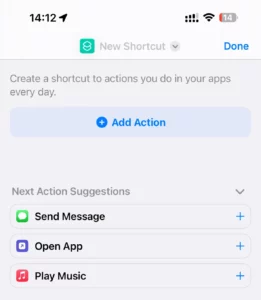
-
Need to rename the shortcut and set up an icon.
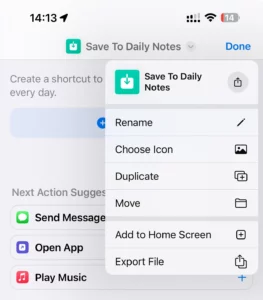
-
Now we can start creating the shortcuts. Click [+] Add Action to proceed.
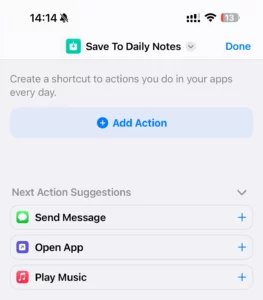
-
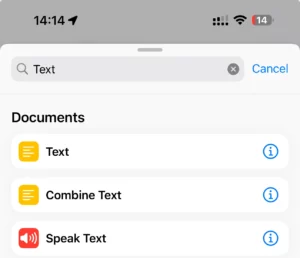
Search for "Text" in the actions list and click on it.
-
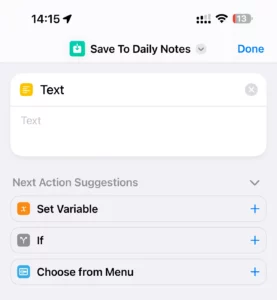
Here is the first action in the shortcut.
Obsidian Requirements: My Obsidian notes are synchronized across devices using a shared iCloud folder. You can find the configuration details here if you haven't set this up yet.
-
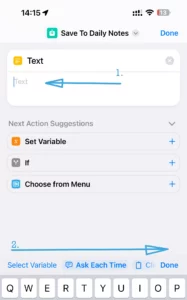
Insert the input variable into the text box by clicking inside it and then swiping left to select "Shortcut input."
-
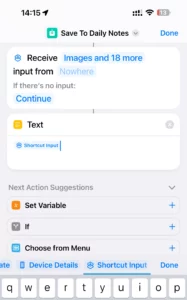
With the input now ready, we can proceed to save it to a file.
-
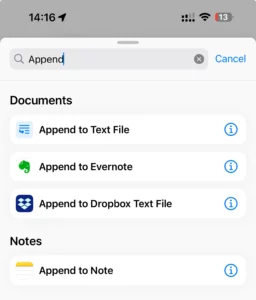
Incorporate the "Append to Text File" action.
-
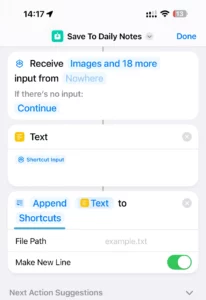
To save the daily notes in the correct folder, click on "Shortcuts" to locate it.
-
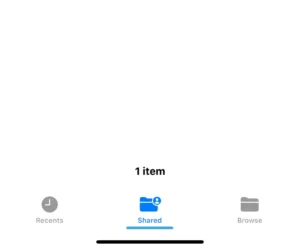
In my situation, I had to access the Shared folder, navigate to the Obsidian folder, and then proceed to the log folder. Similarly, you will need to locate your specific folder for daily notes.
-
Once you've located the correct folder, click the "Open" button.

-
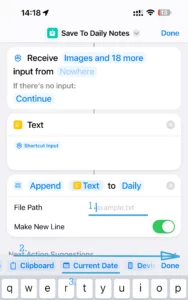
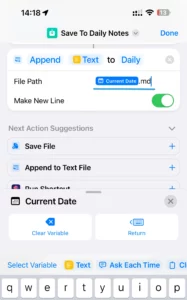
Insert the Current Date variable into the text box.
-
Append the .md extension.
-
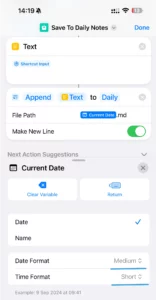
Click on the Current Date variable to select the desired format.
-
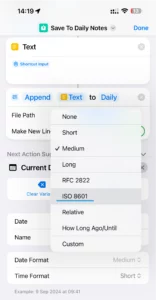
I opted for the ISO 8601 file format, which appears as "2024-02-18," with "None" selected for Time Format.
-
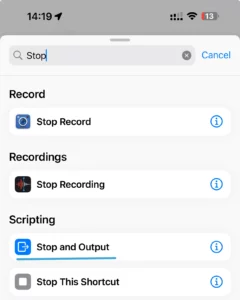
To conclude the action correctly, locate and select the "Stop and Output" action.
-
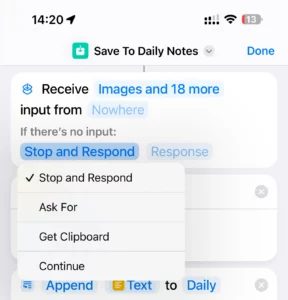
Additionally, ensure the shortcut is executed with an input. To ensure this, choose "Stop and Respond" for the first action in cases where there's no input.
-
We have successfully completed the shortcut setup.
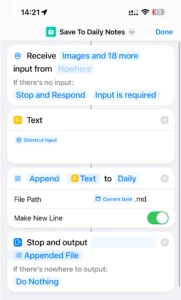
We now have a dedicated function that allows us to append any input to the current daily note. These detailed instructions should assist you in efficiently utilizing Apple Shortcuts, saving you time in your workflow.
This is part of a series on utilizing the Shortcuts App:
- Set up a Shortcut to append text to the current DailyNote in Obsidian (this article)
- Create a Shortcut to retrieve information about today's meetings
- Establish an automation to execute Apple Shortcuts daily